
Blog
Download, install, or reinstall Microsoft 365 or Office 2024 on a PC or Mac

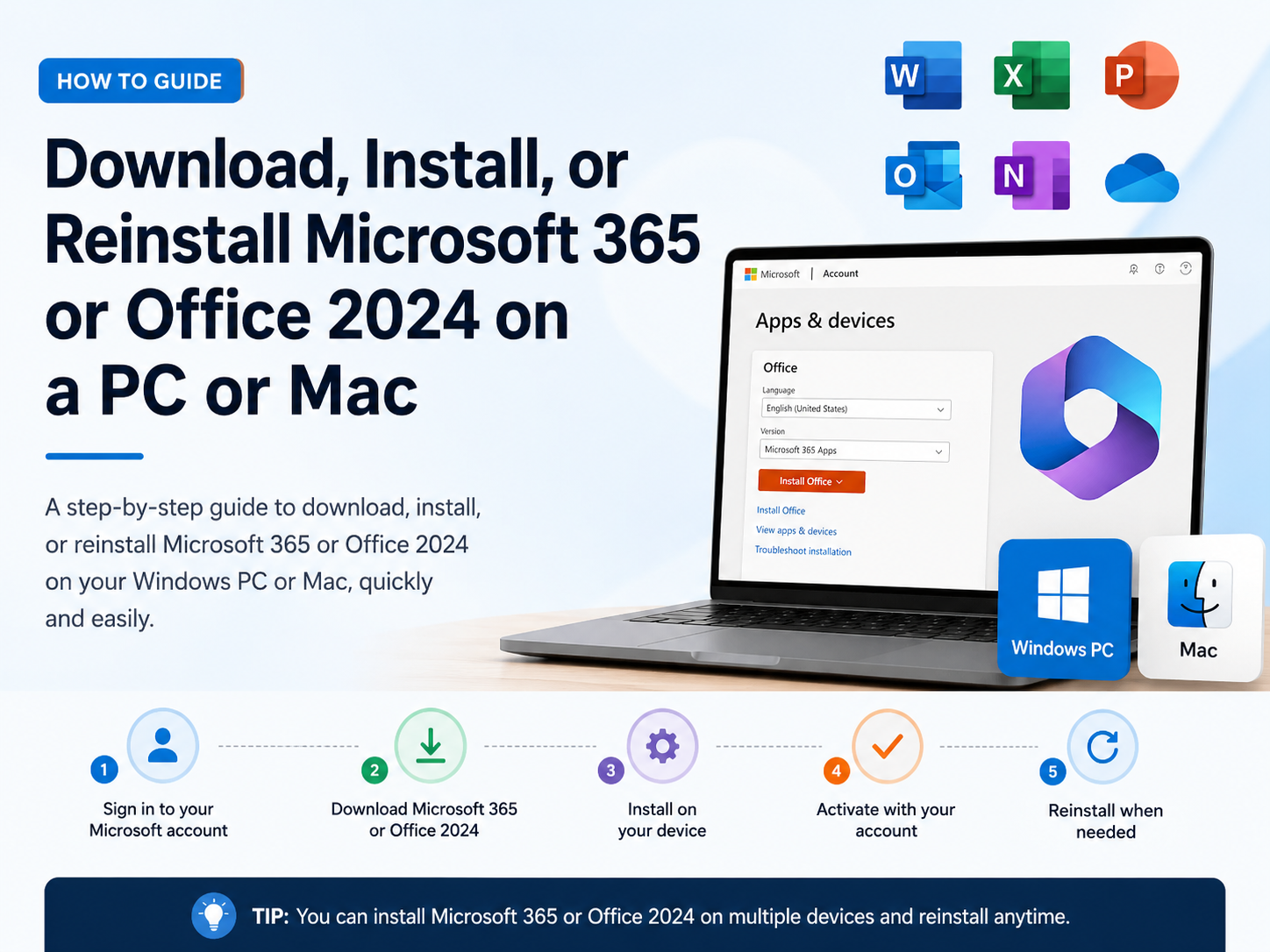
Ready to install Microsoft 365 or Office 2024?
Before you begin, make sure your PC or Mac meets the system requirements.
If you already redeemed a product key, reinstalling the apps, or you have an assigned license through work or school, you can skip ahead and go to the section sign in to download and install Microsoft 365 or Office. However, if this is the first time you’re installing Microsoft 365 or Office, you may have some steps to do first. Expand the Learn more section below for more info.
Guided support in your browser can provide digital solutions for Office problems
Learn more about product keys, assigned licenses, Workplace Discount Program, and volume license versions
Sign in to download and install Microsoft 365 or Office 2024
Install on a PCInstall on a MacNeed help?
Sign in to download Microsoft 365 or Office 2024 on a PC
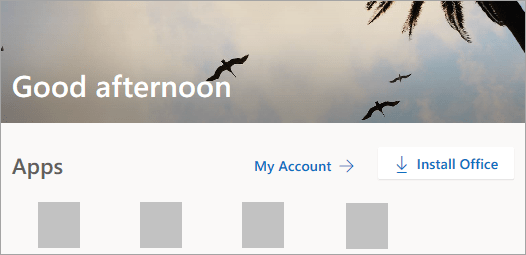
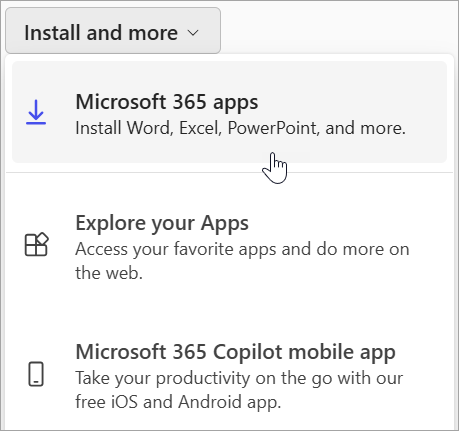
- Go to m365.cloud.microsoft/apps. If you’re not already signed in, select Sign in, and then select the Install apps drop-down.
- Sign in with the account you associated with this version of Microsoft 365. This account can be a Microsoft account, or a work or school account. I forgot the account I use with Office
- After signing in, follow the steps that match the type of account you signed in with.You signed in with a Microsoft account
- From the Microsoft 365Apps page select Install apps.
- Select Install (or depending on your version, Install apps>).
- From the home page select Install apps. (Or, you might need to select Apps from the left navigation pane, and then select Install apps.)
- Select Microsoft 365 apps to begin the installation.
- From the Microsoft 365Apps page select Install apps.
- This completes the download of Microsoft 365 to your device. To complete the installation and activation steps, follow the prompts in the following install and activation sections.Tip: Don’t see an install option after signing in? There could be an issue with your account. Select Need help? from above and review the solutions under Account questions.

Install Microsoft 365 or Office 2024 on a PC
- Depending on your browser, select Run (in Microsoft Edge or Internet Explorer), Setup (in Chrome), or Save File (in Firefox).If you see the User Account Control prompt that says, Do you want to allow this app to make changes to your device? select Yes.The install begins.
- Your install is finished when you see the phrase, “You’re all set! Office is installed now” and an animation plays to show you where to find Microsoft 365 applications on your computer. Select Close.
Installation or sign in issues?
Tip: For help with Microsoft 365 or Office installation issues on a PC, please go to Microsoft 365 troubleshooters and select the Microsoft 365 setup troubleshooter option.
If you’re having an installation issue such as Microsoft 365 taking long to install, try Need help? for a list of common issues.
Activate Microsoft 365 or Office 2024 on a PC
- To open an app, select the Start button (lower-left corner of your screen) and type the name of an app, like Word.
- To open the app, select its icon in the search results.
- When the app opens, accept the license agreement. Microsoft 365 or Office is activated and ready to use.Note: The Activation Wizard appears if Microsoft 365 or Office has trouble activating. Complete the steps in the wizard to finish activation.
Tip: If you’re a small business owner looking for more information on how to get Microsoft 365 set up, visit Small business help & learning.